Nike Filtering: fashionreps Spreadsheet vs Google Sheets
What This Nike Category Filtering Task Aims to Accomplish If your goal is to find Nike items on fashionreps and simultaneously record colors, product links, and follow-up review status, the most reliable approach is to split the task into two steps: first discover items using the website-based spreadsheet or product catalog, then build a sustainable filtering sheet in Google Sheets. This avoids relying solely on images to jud
Marcus LindqvistMarcus Lindqvist is the site's Editor in Chief, approving every order sheet and writing most of its shipping-line comparisons. His coverage includes agent fee structures, freight-line selection, customs and duty information, and QC photo checks. He approves the order sheet before checkout, then records checkout-to-warehouse, QC photo turnaround and line-handover times to the hour. He weighs and measures every parcel before opening it, films the unboxing on a fixed tripod, and checks fee and duty calculations against the actual invoice two weeks after arrival.
Editor score 4.2 / 5
Insight
What This Nike Category Filtering Task Aims to Accomplish
If your goal is to find Nike items on fashionreps and simultaneously record colors, product links, and follow-up review status, the most reliable approach is to split the task into two steps: first discover items using the website-based spreadsheet or product catalog, then build a sustainable filtering sheet in Google Sheets. This avoids relying solely on images to judge colors and allows you to promptly flag broken links or changes in product information.
This guide is for those who need to organize multiple Nike items, compare different colors, or keep product links for later reference. It is not intended for scenarios that require directly confirming stock availability, real-time prices, authenticity, or final shipping costs, as these details still need to be re-verified on the product page and your chosen shopping agent's website. It is recommended to use the information visible on October 16, 2026, as the recording date for this session; any fields that change afterward should be rechecked. 🔎
First, Confirm the Visible Nike Categories and Product Links on fashionreps
After entering fashionreps, start by browsing products, brand entry points, or using the site search; do not copy search results directly into your spreadsheet. Prioritize checking whether the following information appears together:
- Is the product name clear, such as the Nike Gym Bag shown on the page?
- Does the product have an accessible detail page, rather than a blank tab or an address that cannot be opened?
- Does the page provide a style name, product number, or other identifying information that can be used for reference?
- Does the page have images or QC photos that can help identify the color and style?
- Which shopping agent does the Buy button lead to, and will orders, payments, and logistics need to be completed on the agent's site?
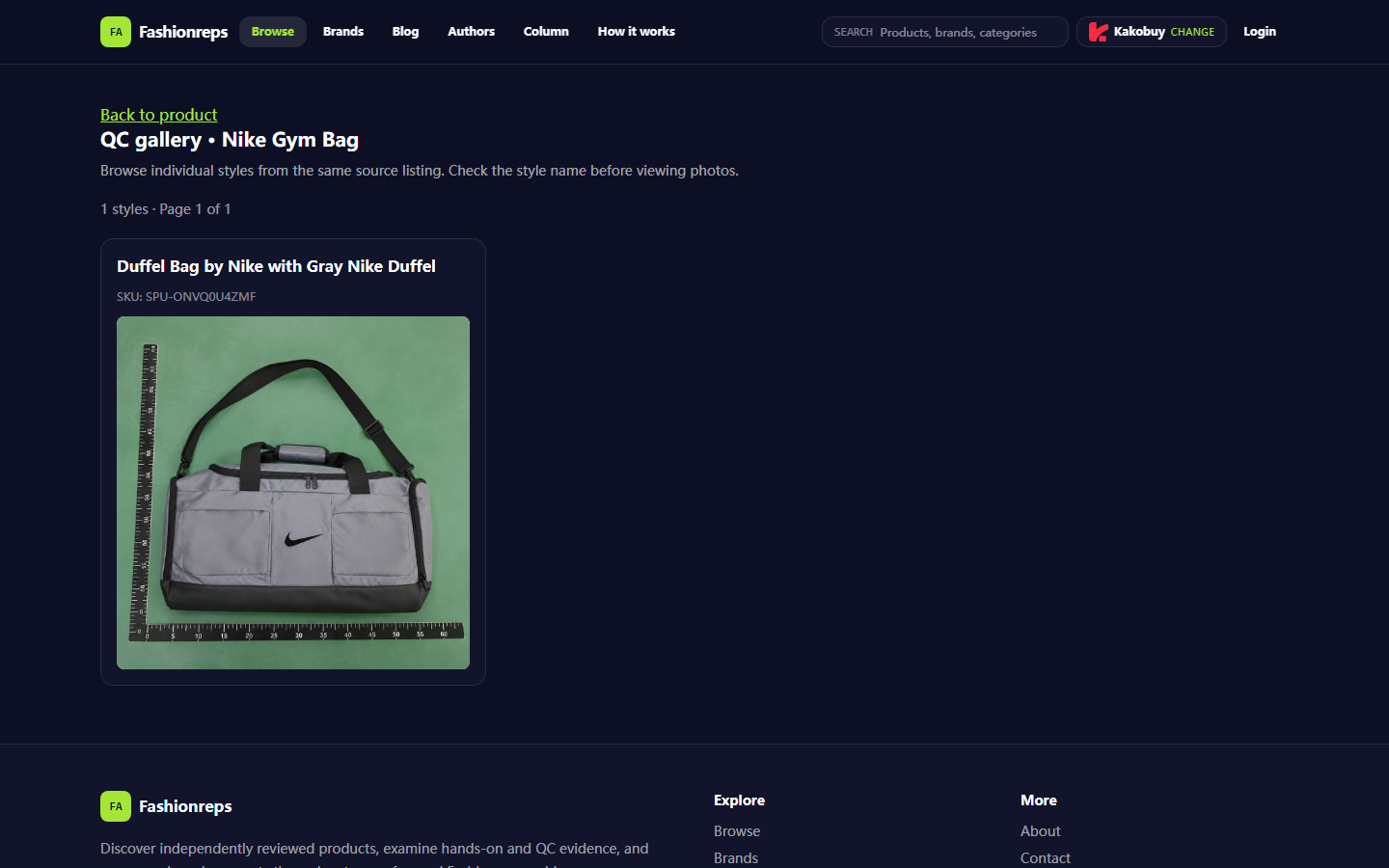
In the visible page example, the Nike Gym Bag QC page shows the product name, a style name "Duffel Bag," an SKU, and a link to corresponding QC photos. The page also prompts you to confirm the style name before viewing photos. This indicates that color identification cannot rely solely on the Nike brand name or product title; you should cross-check the style text, images, and product detail page together. 🧾

Figure: Nike product entries, style information, and QC image browsing area in the product catalog.
How to Browse Color Information by Category in Website-Based Spreadsheets
Website-based spreadsheets are better suited as a discovery tool. Start by browsing Nike categories or brand entry points, then open product cards one by one, and finally go to the product detail page. Do not mistake category names for color fields, and do not write down the background color of an image as the product color.
It is recommended to check in the following order:
- Record the original product name as shown on the website.
- Check whether there is a style name, color name, or size options.
- Open the product images and QC photos to confirm they belong to the current style.
- Record the product detail link and the current page date.
- If the page only has images and no explicit color text, write the color as "pending verification" rather than guessing.
- If the same product has multiple styles, create separate records for each to avoid merging different colors into one row.
The advantage of a website-based catalog is that it preserves the context between product display, images, and detail pages. Its limitation is that the color fields on the page may be incomplete, and product links may change depending on the source page or shopping agent status. Therefore, after browsing the website, you still need an independent organization sheet.
How to Set Up Nike Color and Link Filtering Columns in Google Sheets
Google Sheets is better suited for long-term organization, collaboration, and repeated filtering. It is recommended to create at least the following columns:
| Column Name | How to Fill | Key Review Points |
|---|---|---|
| Brand | Consistently enter "Nike" | Do not mix in style names |
| Product Name | Keep the name visible on the website | Do not add series or material information on your own |
| Style | Fill in as shown on the page | Record multiple styles on separate rows |
| Color | For explicit colors, write them as shown | Mark "pending verification" when no textual evidence |
| Product Link | Record the product detail link | After opening, confirm it is not a blank or incorrect page |
| Image Status | Verified, pending verification, or no image | Do not treat image presence as color confirmation |
| Link Status | Accessible, redirected, broken, or pending review | Record the most recent check date |
| Notes | Write differences, missing fields, and next steps | Avoid unverifiable evaluations |
After setting up the columns, you can use filters to view only rows where the brand is Nike, and then further filter by color, image status, or link status. If collaboration is needed, it is recommended to lock base columns such as brand, product name, and original link, and only allow collaborators to modify color verification, image status, and notes, reducing the risk of overwriting original data.
It is best to use consistent wording for the color field. For example, if the page explicitly states "Gray," keep "Gray," and you can record "gray" in another column for reference. If the page shows only a gray product image without a color name, you cannot directly classify it as "Gray"; instead, mark it as "image shows, text unconfirmed."
How to Cross-Check Images, Product Cards, and Spreadsheet Rows Item by Item
After completing each row, perform a review using the five elements "name, style, image, link, status":
- Name: Is the product name in the spreadsheet consistent with the product page on the website?
- Style: Have you mistakenly included another style of the same product in the current row?
- Image: Does the image belong to the current product, not a recommendation area or similar product?
- Link: Does it still open the corresponding product page when clicked?
- Status: Have you recorded the verification date and which fields remain unconfirmed?
If the page shows multiple styles, you should first select or open the specific style on the website page, then place the corresponding image and link in the same row. Do not copy one general product link to all color rows and assume the task is done, because different styles may correspond to different images, different source information, or different purchase links. ✅
Differences Between the Two Methods in Quick Discovery and Long-Term Organization
| Use Case | Website-Based Spreadsheet or Catalog | Google Sheets |
|---|---|---|
| Finding new products | Better for browsing categories, product cards, and images | Requires entering products into the sheet first |
| Verifying visual information | Can directly go back to product images or QC photos | Depends on saved image notes and page links |
| Filtering by color | Depends on whether the page provides explicit color fields | Can create a color column and filter consistently |
| Collaboration | Usually browsing-oriented | Suitable for dividing tasks, notes, and status management |
| Tracking broken links | Need to reopen pages to check | Can use status and date columns for ongoing records |
In practice, these two methods are not mutually exclusive. The website provides current context for visible products, while Google Sheets keeps filtering results, review records, and next-step tasks. If you only use the website, you risk losing results you have already checked; if you only use the spreadsheet, you may lose image and style context during copying.
How to Mark Broken Links, Missing Color Information, and Update Times
Link status should be divided into at least four categories: accessible, redirected, broken, and pending review. When encountering a redirect, open the final page to confirm whether the product name still matches the original record; when encountering a blank page, error page, or a page where the product identity cannot be confirmed, do not continue to use the old color conclusion.
For products with missing color information, you can use the following recording methods:
- Color text is explicit and image matches: record as verified.
- Only image, no color text: record as image shows, text unconfirmed.
- Color text conflicts with image: record as conflict exists, pause filtering conclusion.
- No image and no color text: record as lacking evidence.
- Page updated but sheet not reviewed: record as pending update, and keep the last check date.
Do not delete broken records. Keep the original link, most recent check date, and broken status so that if the website recovers or a new product link appears, you can trace the change. Also, do not write down purchasing, payment, inventory, or logistics status from the agent's website as facts confirmed by the fashionreps product catalog.
Product Detail Page Review Checklist After Filtering
Before handing a Nike item over to the next step of purchasing or comparison, check the following items one by one:
- The product name and style name can be found on the page.
- The color has textual evidence, or is clearly marked as pending verification.
- The image belongs to the current style, not a mistaken recommended product image.
- The product detail link works and is not redirected to an unrelated page.
- QC photos correspond to the product name or SKU.
- The spreadsheet contains the link status and most recent verification date.
- The agent linked to the Buy button has been separately confirmed; orders, payments, and logistics are not handled by the catalog page.
- When key evidence is still missing, the product has not been written as confirmed, in stock, or guaranteed purchasable.
This method itself does not promise fixed savings. It mainly reduces organizing time caused by repeatedly opening pages, re-judging colors, and using broken links. The added risk is that the spreadsheet may lag behind the website, or collaborators may mistakenly record image observations as definite colors, so you must keep status and date fields. It is suitable for organizing multiple Nike items, requiring collaboration, or repeatedly checking links; if you are only looking at one or two items, or the page lacks sufficient color and style information, it is not recommended to force conclusions just to build a complex spreadsheet.
Article Image